
You have probably seen it before. You land on a website, glance up at the address bar, and there it is: a small warning telling you the site is “Not Secure.” Maybe it was someone else’s website. Maybe it was your own, and it caught you off guard.
Either way, it raises a fair question. What does that warning actually mean, is it something to worry about, and how do you check whether your own website is secure in the first place? This guide answers all three, in plain English, with no technical background required.
Why website security matters
Website security is not just a technical box to tick. It affects whether people trust your business enough to fill in a form, make a purchase, or even stay on the page.
A few basics are worth knowing before anything else. Every website should run over HTTPS rather than plain HTTP, which means the connection between your visitor’s browser and your server is encrypted. Google has treated HTTPS as a ranking signal for years, so an insecure site can quietly work against your SEO as well as your reputation. And browsers such as Google Chrome and Microsoft Edge now flag insecure sites automatically, which means security problems are no longer hidden away in the background. Visitors see them immediately.
For a small or medium sized business, that combination (lost trust, lost search visibility, and a very visible warning) is exactly why website security basics deserve regular attention rather than a one off check when something goes wrong.
How do you check if a website is secure?
Checking whether a site is secure takes less than a minute, and you do not need any technical knowledge to do it.
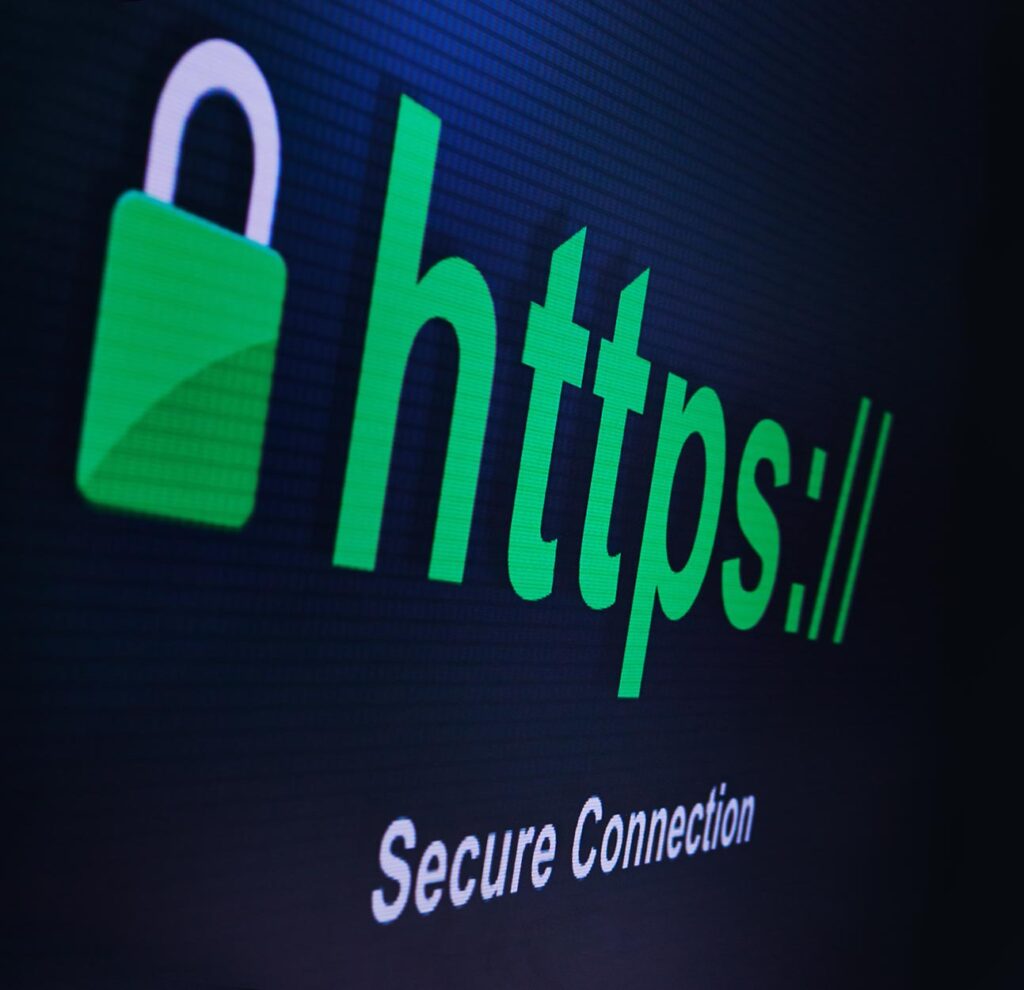
- Look at the address bar. Open the website and check the very start of the web address. It should begin with “https://” rather than “http://”. Most modern browsers hide this prefix by default, so you may need to click into the address bar to see it clearly.
- Find the padlock icon. Next to the address, you should see a small padlock symbol. This confirms the connection is encrypted using an SSL or TLS certificate.
- Click the padlock for details. Selecting the padlock (or the small icon beside it, depending on your browser) shows you certificate information, including who issued it and how long it is valid for.
- Watch for warning messages. If a site is not secure, most browsers will tell you outright, either with a “Not Secure” label in the address bar or a full page warning before you can proceed.
- Run a quick external check. If you want more detail, a free SSL checker tool will scan a domain and confirm whether its certificate is valid, correctly installed, and not about to expire.
If you are asking “is my website secure” or “is my site secure ssl,” this five step check will answer both. The short version: if you see “https://” and a closed padlock with no warning attached, the connection itself is secure. It does not, on its own, tell you whether the site is free of malware, which is a separate question we cover further down.
What does ‘not secure’ mean on a website?
If a browser is telling you a site is “not secure,” it is almost always pointing to one specific problem: the site does not have a valid SSL certificate properly installed, or something on the page is undermining the certificate it does have.
The most common causes are:
- No SSL certificate at all. The site is still running on plain HTTP rather than HTTPS.
- An expired certificate. SSL certificates have a validity period, and once that passes, browsers stop trusting them until they are renewed.
- A certificate that does not match the domain. This happens when a certificate was issued for a different web address than the one being visited, often after a domain change or a hosting migration.
- Mixed content. The page itself loads over HTTPS, but it pulls in some elements (images, scripts, or embedded content) over an insecure HTTP connection, which is enough to trigger a warning.
- “Website is not private.” This is a variant of the same warning, usually shown as a full page block rather than a small address bar label, and it means the browser has more serious doubts about the certificate.
If you have searched “google says my website is not secure,” “my website is saying not secure,” or “your website is not secure” while trying to diagnose your own site, it is almost certainly one of the issues above rather than anything more complicated. The fix is usually straightforward for a developer to put right, but it does need putting right quickly. Visitors who see that warning tend to leave immediately, and some browsers will actively discourage them from continuing at all.
Is my website at risk of malware?
An SSL warning and a malware infection are two different problems, and it is worth telling them apart.
A missing or invalid SSL certificate means the connection is not encrypted. It does not automatically mean the site has been hacked. Malware, on the other hand, means malicious code has actually been placed on your website, usually to redirect visitors, harvest data, or serve unwanted adverts.
Common signs that a website is infected with malware include:
- A red, full screen warning from Google Safe Browsing when visiting the site.
- Security issues flagged inside Google Search Console.
- Unexpected redirects to unfamiliar websites.
- Strange new admin users or files appearing without explanation.
- The site being flagged or blacklisted in search results.

Malware infections almost always trace back to outdated software: an unpatched WordPress core, an old plugin or theme with a known vulnerability, or weak admin passwords. This is exactly why routine maintenance, including regular core updates and security scanning, matters so much more than a one off clean up after the fact. Our website maintenance service is built around catching these issues before they become a visible problem for your visitors.
Checking security on Squarespace and Wix
Squarespace and Wix both include a free SSL certificate as standard on every site, including sites using a custom domain, so a “not secure” warning on one of these platforms usually points to something more specific rather than a missing certificate altogether.
If your Squarespace site is not secure, the most likely causes are a custom domain that has not finished its DNS verification, a certificate that has not yet been issued following a recent domain connection, or mixed content coming from an embedded third party element such as a video or booking widget. Squarespace’s own domain settings panel will usually confirm whether SSL is active for your connected domain, and reconnecting the domain often resolves a stuck certificate.
The same generally applies if your Wix site is not secure. Check the domain connection status inside your Wix dashboard first, since a custom domain that is not fully verified is the most common cause. From there, look for embedded HTTP content, such as an older widget or script, which can trigger a mixed content warning even when the underlying certificate is perfectly valid.
In both cases, the platform is handling the certificate itself, so the fault usually sits with domain configuration or embedded content rather than anything more serious. If reconnecting the domain does not clear the warning, it is worth having someone check the page’s source for insecure embeds directly.
Get your website properly secured
A “not secure” warning is not something to leave and hope goes away. It affects how much visitors trust your business, and it can quietly damage your search visibility at the same time.
As part of our web design and development and website maintenance services, we make sure every site we build and manage has a properly configured, continuously monitored SSL certificate, along with regular security scanning to catch problems before your visitors ever see a warning. Our managed hosting takes care of the infrastructure side too, so certificates renew automatically and nothing is left to chance.
If you are not sure whether your own website is secure, or you have seen a warning you would like explained properly, get in touch and our team will take a look.
